

c880 — Login: Access Your Account on Mobile and App
Sign in on the Android app or mobile site, reset your password and fix OTP problems in a few taps.
Table of Contents
To use the c880 login, open the app or the mobile site, tap Login, enter your registered mobile number and password, then confirm the OTP if the screen asks for it. Most sign-ins take under a minute. If it fails, the cause is a wrong number format or a weak connection.
Picture this: you are on a bus, the match is about to start, and the app shows a red error. Do not keep tapping. Read the fixes below first, then try once more.
c880 – Before you start: what you need
Check this short list before you tap anything. It saves most failed attempts.
- An account already registered. If not, read the sign-up steps on the c880 main page.
- The mobile number you used at registration, written as 01XXXXXXXXX or +880 1XXXXXXXXX.
- Your password, typed exactly, with capital letters in the right place.
- The SIM in your phone, so the OTP SMS can arrive.
- Mobile data or Wi-Fi with a stable signal.
- You must be 18 or older.
Log in on the Android app
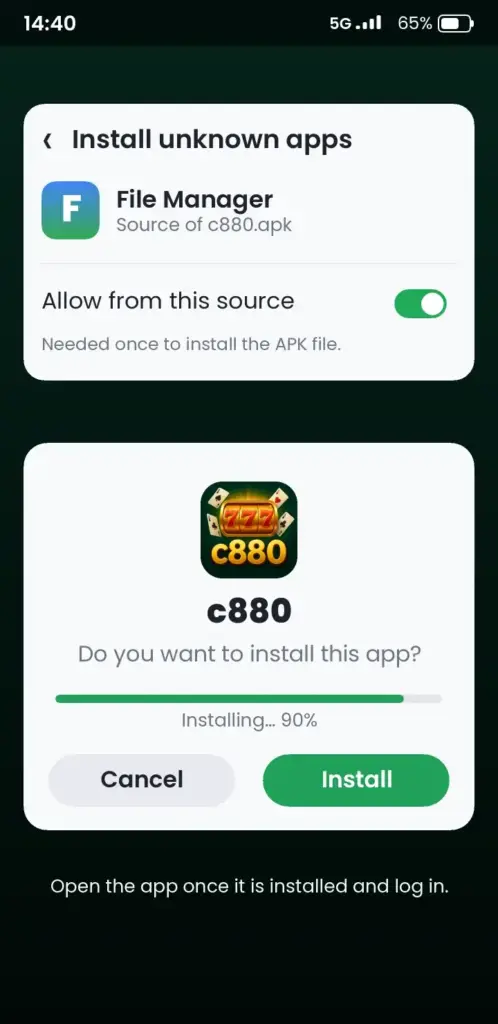
The app is the quickest way back into your account. If it is not installed yet, use the c880 App Download page first.
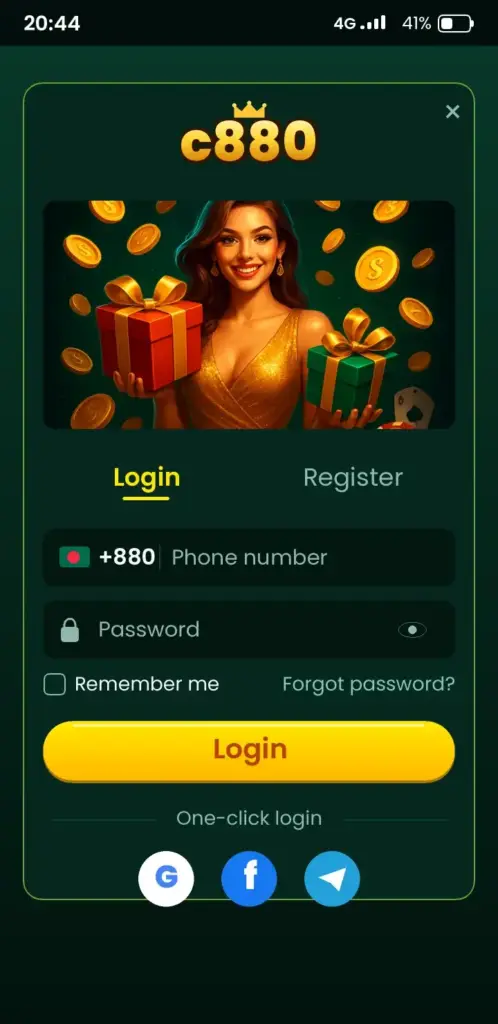
- Open the app from your home screen.
- Tap the Login button at the top of the first screen.
- Enter your mobile number. Skip the first zero only if the field already shows +880.
- Type your password. Tap the eye icon to check it.
- Tap Login. Enter the OTP if one is requested.
- Wait for the home screen and your balance to load.
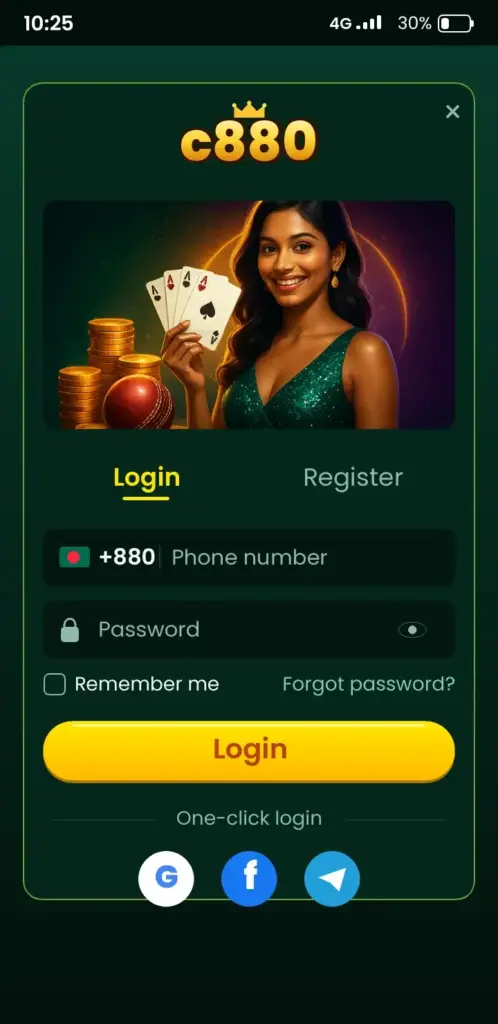
Next step: if the app asks to stay signed in, accept only on a phone that is yours alone.
Sign in through the mobile site
No space for the app? The browser works too. Use Chrome and type the address yourself instead of tapping links from chats.
- Open Chrome and go to the official platform at c880ok.site.
- Tap Login in the top menu.
- Enter your number and password.
- Confirm the OTP when it arrives.
Tip: bookmark the page. Fake lookalike addresses are a common trap, and a bookmark avoids them.
Forgot your password? Reset it
You can recover access without contacting anyone, as long as you still control the registered SIM. Resets run on OTP.
- On the login screen, tap Forgot password.
- Enter your registered mobile number.
- Wait for the SMS code. It normally arrives within a minute.
- Type the code, then set a new password.
- Return to the login screen and sign in.
Pick a password you do not use anywhere else. Mix letters and numbers. Do not use your birth year or phone number.
OTP and verification explained
An OTP is a one-time code sent by SMS. It proves the SIM is yours. It expires after a short time, so use it quickly.
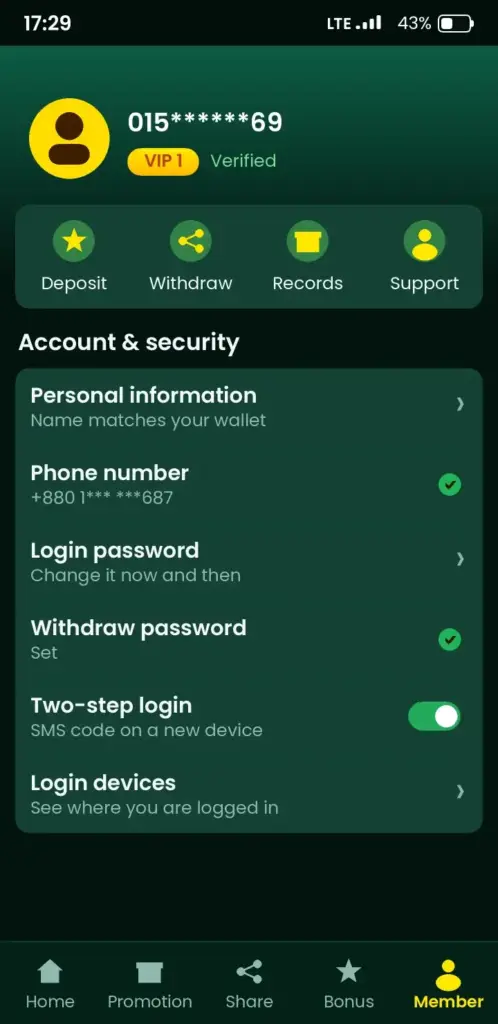
Never share it. Support staff do not need your OTP or password. If someone asks, stop the chat.
If the code does not arrive, wait one minute before requesting another. Repeated requests can block the number for a while. Check that your SMS inbox is not full and that the phone is not in flight mode.
Why verification appears again
A new phone, a cleared app or a different network can trigger an extra check. Before a withdrawal, the platform can also ask for identity details. Check the app for the current rules.
Common c880 login problems and fixes
| Problem | Likely cause | What to do |
|---|---|---|
| Wrong password message | Typo, caps lock, old password | Show the password with the eye icon, then reset if needed |
| OTP not arriving | Weak signal, full inbox, too many requests | Wait a minute, check SMS storage, request once |
| Number not found | Wrong format or different number used | Try 01… and +880 forms, or the other SIM |
| App stuck on loading | Poor network or old version | Switch Wi-Fi and data, then update the APK |
| Page will not open | Browser cache or provider issue | Clear cache, try another browser or network |
| Account locked | Many failed attempts | Wait, then reset the password or contact support |
Updating matters. An outdated build can fail at sign-in while a fresh one works. Follow the update steps on the app page and keep your account data.
Keep your account safe
Your account holds money, so treat it like a bank app.
- Log out on shared or borrowed phones.
- Install the APK only from the official link.
- Turn off Install unknown apps for your browser after installing.
- Never send your password through chat or social media.
- Use a screen lock on your phone.
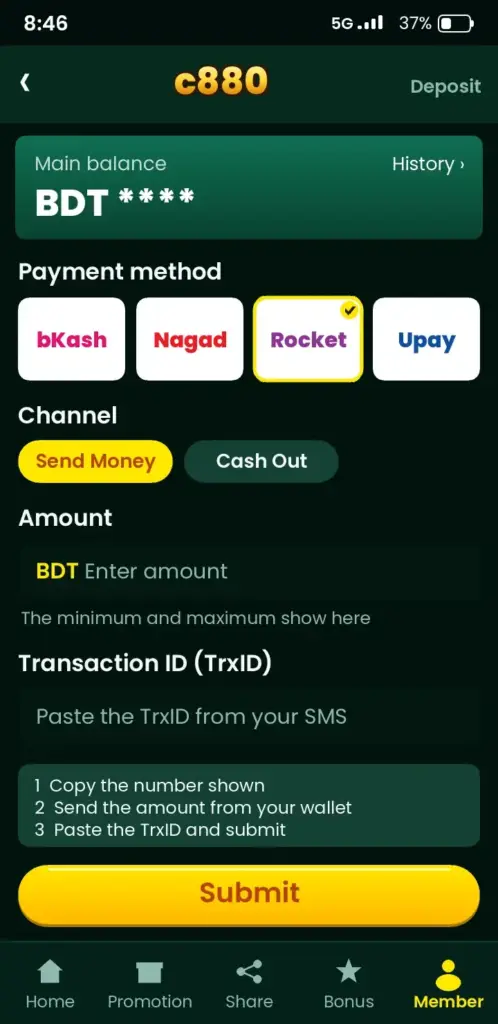
- Keep the bKash or Nagad transaction ID until a deposit shows. You can check wallet security through the bKash app listing or Nagad.
If you lose your phone, ask your operator to block the SIM and reset your password from a new device.
After you sign in: where to go next
Once inside, take a minute to set a daily deposit limit. Then look around. New users often start with the bonuses page to read wagering terms before claiming anything. Others open the Aviator crash game or the cricket betting section for IPL and BPL matches.
Deposits are in taka (BDT). Check the cashier in the app for the current list of wallets and limits.
Play responsibly
This content is for adults aged 18 and over. Games and betting are entertainment, not income. Set a daily limit, never chase losses and take a break if play affects sleep, work or money. Free, confidential help is available at Gambling Therapy.
Switching phones or reinstalling: what happens to your account
Your account lives on the server, not on the handset, so a new phone or a fresh install does not delete anything. Install the app again, enter your registered mobile number and password, and your balance and history should be there. Keep the same number if you can, because the OTP goes to it.
A few things do not carry over automatically, and it helps to know them before you wipe the old device.
- Saved password: the autofill entry may vanish, so note the password in a safe place first.
- Biometric or PIN shortcut: set it up again on the new phone, if the app offers it.
- Notification settings: allow them once more so alerts and OTP prompts show up.
- Old sessions: log out on the old phone if you are selling or giving it away.
If your SIM number has changed, do not create a second account. Contact support through the app or site and ask how to update the number on the existing one. Duplicate accounts can cause trouble with verification and withdrawals later.
Quick checks on your phone before you try again
Many failed sign-ins come from the handset, not the account. Spend two minutes on these checks before you request another OTP or reset the password, because repeated attempts can temporarily slow you down.
- Open any website in your browser to confirm mobile data or Wi-Fi really works. Weak signal is common during peak evening hours.
- Check the date and time are set to automatic. A wrong clock can break secure connections and make pages fail to load.
- Look at free storage. A nearly full phone can freeze the app or stop it saving the session.
- Update the app to the latest version you downloaded, since an old build may misbehave after server changes.
- Close the app fully from recent apps, then reopen it.
- Switch between Wi-Fi and mobile data to rule out a network block by your provider.
If you use a VPN, turn it off for the attempt. Changing locations mid-session can trigger extra security checks. Once these steps are done and the problem remains, note the exact message on screen and send a screenshot to support, which makes the fix much faster.
Ready to go in? Open the platform and log in, or get the app from the download page. Questions? See the c880 FAQ.
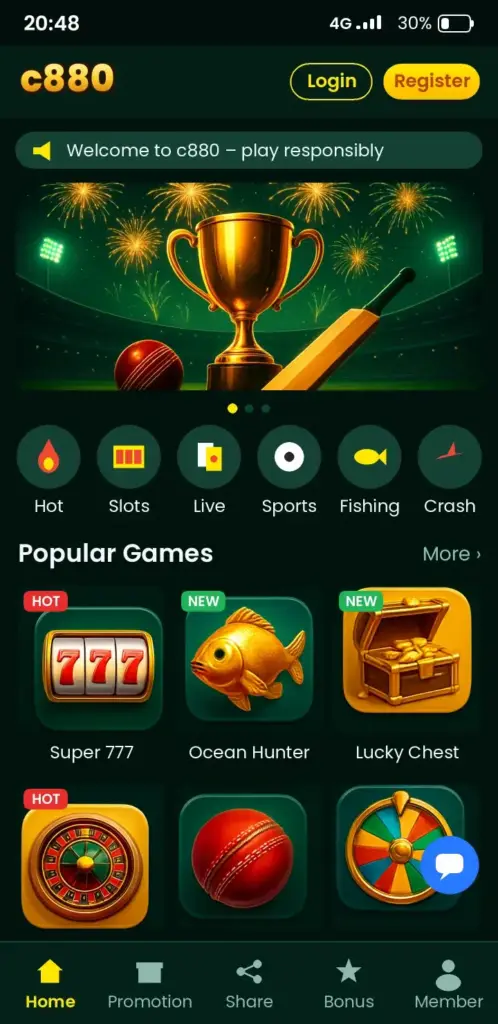
c880 App Screenshots: Game Lobby, Login, Deposit & Bonuses
See how the c880 app looks on an Android phone before you download it – tap any screen to open the app.

Frequently Asked Questions
How do I do the c880 login on my phone?
Open the app or mobile site, tap Login, enter your registered mobile number and password, then type the OTP if asked. Check that the number format matches your registration, either 01XXXXXXXXX or +880. The home screen and balance should load within seconds.
c880 login korbo kivabe?
Open the app, tap Login, then write your registered mobile number and password. Tap the eye icon to check you typed it correctly. If an OTP SMS comes, enter it. If you have no account yet, register first with your mobile number.
What can I do if I forgot my c880 password?
Tap Forgot password on the login screen, enter your registered number and type the SMS code. Then set a new password and sign in again. You need access to the same SIM, so keep it active and charged.
Why does the c880 OTP not arrive?
Weak signal, a full SMS inbox or too many requests cause it. Wait one minute, check flight mode, free some storage and request the code once. If it still fails, try another network or contact support through the app.
Can I use c880 login on the mobile site without the app?
Yes. Open Chrome, go to the official platform address, tap Login and enter your number and password. The mobile site needs no install. Bookmark the page so you always open the right address instead of links from chats.
Does c880 login work on iPhone?
The brief does not confirm an iOS app, so use the mobile site in Safari on an iPhone. The Android APK only installs on Android phones. Check the app page for any later update on iOS availability.
Why does c880 say my password is wrong?
The usual causes are a typo, caps lock or an older password. Tap the eye icon to view what you typed, then try again. After a few failed tries, use Forgot password rather than guessing, since repeated attempts can lock the account.
Is c880 login safe on public Wi-Fi?
Public Wi-Fi carries more risk, so mobile data is the safer choice. If you must use it, log out afterwards and never save the password on a shared device. Never share your OTP or password with anyone.
What should I check if the c880 app is stuck on login?
Switch between Wi-Fi and mobile data, close and reopen the app, then clear its cache in Settings. If it still hangs, you have an old build. Update the APK from the official link and sign in again.
c880 theke taka tulbo kivabe after login?
After you sign in, open the cashier or wallet in the app and choose Withdraw. Pick your method, such as bKash or Nagad if listed, enter the amount in taka and confirm. Processing time varies, so check the app for current limits.